Blazor Grid 개요 및 구성
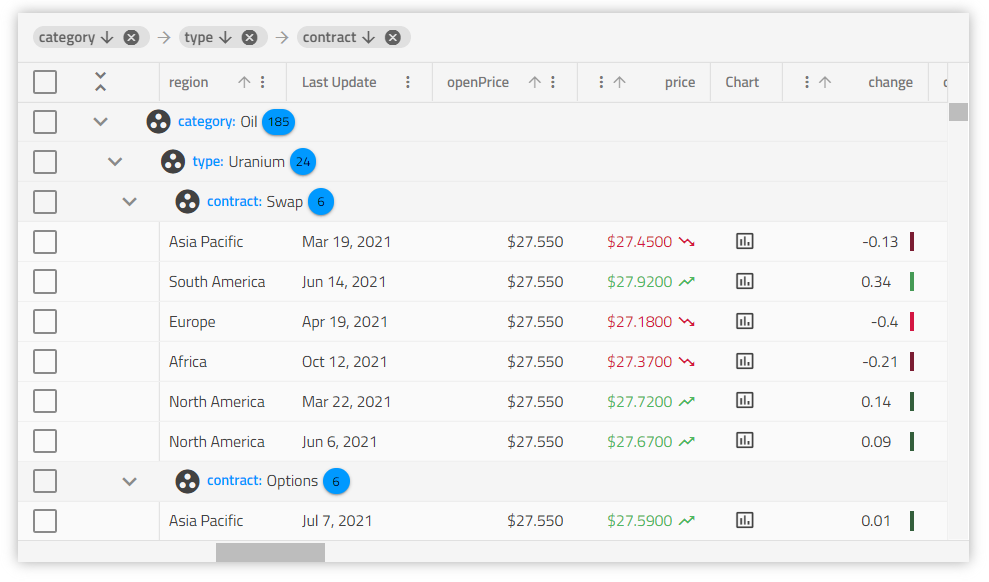
Blazor Data Grid Example
이 Ignite UI for Blazor Grid 예제에서는 사용자가 기본 및 Excel 스타일 필터링, 라이브 데이터 정렬, 그리드 요약 및 셀 템플릿을 사용하는 방법을 확인할 수 있습니다. 데모에는 페이지당 10개 항목을 표시하도록 설정된 페이징도 포함됩니다.
Getting Started with Blazor Data Grid
Dependencies
Blazor Data Grid를 시작하려면 먼저 Blazor 패키지를 설치해야 합니다.
IgniteUI.Blazor 패키지 추가에 대한 다음 항목을 참조하십시오.
또한 그리드에 필요한 스타일을 제공하려면 애플리케이션의 index.html 파일에 다음 CSS 링크를 포함해야 합니다.
<link href="_content/IgniteUI.Blazor/themes/grid/light/bootstrap.css" rel="stylesheet" />
그런 다음 다음 네임스페이스를 추가하여 컨트롤 구현을 시작할 수 있습니다.
@using IgniteUI.Blazor.Controls
Component Modules
다음DataGrid 모듈들이 필요합니다:
// in Program.cs file

builder.Services.AddIgniteUIBlazor(typeof(IgbGridModule));
Usage
이제 그리드 패키지를 가져왔으므로 기본 구성을 시작하고 로컬 데이터에 바인딩하겠습니다.
<IgbGrid Id="grid1" Data="data" AutoGenerate="true"></IgbGrid>
속성은Id 문자열 값이며, 제공되지 않으면 자동으로 생성되는 그리드의 고유 식별자이며,data이 경우 그리드를 로컬 데이터에 묶습니다.
이 속성은AutoGenerate 데이터 소스 필드를 기반으로 그리드의IgbColumn 구성 요소를 자동으로 생성하도록 그리드에 지시합니다. 가능하다면 해당 열에 맞는 적절한 데이터 타입을 추론하려고 시도합니다. 그렇지 않으면 개발자가 열과 데이터 소스 필드와의 매핑을 명시적으로 정의해야 합니다.
Editable Blazor Grid
그리드 편집을 위한 각 작업에는 일괄 작업이 포함되어 있습니다. 즉, API는 편집 내용을 단일 서버 호출로 그룹화하거나 그리드 상호 작용으로 발생하는 대로 그리드 편집/업데이트 작업을 수행할 수 있는 옵션을 제공합니다. CRUD 작업이 있는 편집 가능한 그리드로서 훌륭한 개발자 경험과 함께 그리드에는 Excel과 같은 키보드 탐색이 포함됩니다. 일반적인 기본 그리드 탐색이 포함되어 있으며, 고객의 요구 사항을 충족시키기 위해 모든 탐색 옵션을 재정의하는 옵션도 있습니다. 훌륭한 탐색 체계가 있는 편집 가능한 그리드는 모든 최신 사업 분야 애플리케이션에 필수적이며, Ignite UI 그리드를 사용하면 쉽게 만들 수 있습니다.
이 주제를 따라 셀 템플릿 및 셀 편집 템플릿과 편집에 대해 자세히 알아봅니다.
Grid Column Configuration
IgbColumn그리드의 열 컬렉션을 정의하고 정렬 및 필터링과 같은 컬럼별 기능을 활성화하는 데 사용됩니다. 셀, 헤더, 푸터 템플릿도 제공됩니다.
Defining Columns
속성을 끄AutoGenerate 고 마크업에서 열 컬렉션을 정의해 봅시다:
<IgbGrid AutoGenerate=false AllowFiltering=true>
    <IgbColumn Field="Name" Sortable=true />
    <IgbColumn Field="AthleteNumber" Sortable=true Header="Athlete Number" Filterable=false/>
    <IgbColumn Field="TrackProgress" Header="Track Progress" Filterable=false />
</IgbGrid>
Header Template
열 머리글을 수정하도록 머리글 템플릿을 설정할 수 있습니다. 아래 스니펫은 헤더 텍스트를 대문자로 포맷하는 방법을 보여줍니다.
<IgbColumn Field="Name" HeaderTemplateScript="UpperCaseTemplate" />

//In JavaScript:
igRegisterScript("UpperCaseTemplate", (ctx) => {

    var html = window.igTemplating.html;

    return html`${this.formatUppercase(ctx.column.field)}`;

}, false)

function formatUppercase(value) {
    return value.toUpperCase();
}
Cell Template
셀 템플릿이 설정되면 열의 모든 셀이 변경됩니다. 템플릿에서 제공되는 컨텍스트 개체는 암시적으로 제공된 셀 값과 셀 개체 자체로 구성됩니다. 예를 들어 제목 케이스와 같이 셀의 텍스트가 형식화될 수 있는 템플릿을 정의하는 데 사용할 수 있습니다.
<IgbColumn Field="Name" BodyTemplateScript="NameCellTemplate"/>

//In JavaScript:
igRegisterScript("NameCellTemplate", (ctx) => {
    var html = window.igTemplating.html;

    return html`${this.formatTitleCase(ctx.implicit)}`;
}, false);

function formatTitleCase(value) {
    return value.toUpperCase();
}
위 스니펫에서는 암묵적으로 제공되는 셀 값을 참조합니다. 이 정도면 데이터를 일부 표시하고 셀 값에 대해 커스텀 스타일링이나 파이프 변환을 적용하고 싶을 때 충분합니다. 하지만 더 유용한 점은 아래에 보이는 사례 자체를 예로 들Cell 수 있습니다:
<IgbGrid Id="grid" AutoGenerate=false>
    <IgbColumn Field="Name" BodyTemplateScript="NameCellTemplate" />
    <IgbColumn Field="Subscription" BodyTemplateScript="SubscriptionCellTemplate" />
</IgbGrid>

//In JavaScript:
igRegisterScript("NameCellTemplate", (ctx) => {
       var html = window.igTemplating.html;
    return html`
        <span tabindex="0" @keyup=${(e) => this.deleteRow(e, ctx.cell.id.rowIndex)}> ${this.formatTitleCase(ctx.cell.value)}</span >
    `;
}, false);

igRegisterScript("SubscriptionCellTemplate", (ctx) => {
    var html = window.igTemplating.html;
     if (ctx.cell.value) {
            return html` <input type="checkbox" checked /> `;
    } else {
            return html` <input type="checkbox"/> `;
    }
}, false);

function deleteRow(e, rowIndex) {
    if (e.code === "Delete") {
        this.grid.deleteRow(rowIndex);
    }
}

function formatTitleCase(value) {
    return value.toUpperCase();
}
참고: 그리드는 숫자, 문자열, 날짜, 불리언 열 유형에 대한 기본 처리를 제공합니다. 예를 들어, 불리언 열 유형에 대해 기본적으로 true/false 대신 열이 아이콘으로 표시됩니다
checkclose.
적절히 구현되면, 셀 편집 템플릿은 셀이EditValue 그리드 편집 이벤트 사이클을 올바르게 통과하도록 보장합니다.
Cell Editing Template
또한 셀이 편집 모드에 있을 때 사용할 마지막 템플릿 하나를 허용합니다. 다른 열 템플릿과 마찬가지로, 제공되는 컨텍스트 객체는 다시 셀 값과 셀 객체 자체입니다. 물론 편집 모드 템플릿을 최종 사용자가 접근할 수 있게 하려면 열의 속성을 true로 설정Editable 해야 합니다.
<IgbColumn Field="Price" Editable=true DataType="GridColumnDataType.Number" InlineEditorTemplateScript="PriceCellTemplate" />

//In JavaScript:
igRegisterScript("PriceCellTemplate", (ctx) => {
    var html = window.igTemplating.html;

    return html`
        <label>
            Enter the new price tag
        </label>
        <input name="price" type="number" value="${ctx.cell.value}"
        @change=${(e) => this.updateValue(e, ctx.cell.value)} />
    `;
}, false);

function updateValue(event, value) {
}
템플릿에 사용할 수 있는 제공되는 속성에 익숙해지려면 APICell를 꼭 확인하세요.
Column Template API
각 열 템플릿은 객체 자체를 통해IgbColumn 언제든지 프로그래밍적으로 변경할 수 있습니다. 예를 들어, 아래 코드에서는 사용자 데이터를 위해 두 개의 템플릿을 선언했습니다. TypeScript 코드에서는 템플릿 자체에 대한 참조를 받고, 어떤 조건에 따라 애플리케이션 내 열에 맞는 적절한 템플릿을 렌더링합니다.
<IgbGrid ColumnInit=OnColumnInit />

@code {
    public void OnColumnInit(IgbColumnComponentEventArgs args)
    {
        IgbColumn column = args.Detail;
        // Return the appropriate template based on some condition.
        // For example saved user settings, viewport size, etc.
        column.BodyTemplateScript = "NormalViewTemplate";
    }
}

//In JavaScript:
igRegisterScript("NormalViewTemplate", (ctx) => {
    var html = window.igTemplating.html;
    return html`
        <div class="user-details">${ctx.cell.value}</div>
        <user-details-component></user-details-component>
    `;
}, false);

igRegisterScript("SmallViewTemplate", (ctx) => {
    var html = window.igTemplating.html;
    return html`
        <div class="user-details-small" style="color: blue">${ctx.cell.value}</div>
    `;
}, false);
열의 속성은 또한 열이 그리드에서 초기화될 때 발생하는 이벤트에서ColumnInit 코드로 설정할 수 있습니다.
<IgbGrid ColumnInit=OnColumnInit />

@code {
    public void OnColumnInit(IgbColumnComponentEventArgs args)
    {
        IgbColumn column = args.Detail;
        if (column.Field == "ProductName") {
            column.Sortable = true;
            column.Editable = true;
        }
    }
}
위의 코드는 ProductName 열을 정렬 및 편집 가능하게 만들고 해당 기능 UI(편집을 위한 입력 등)를 인스턴스화합니다.
Custom Display Format
형식화를 위한 선택적 매개변수가 있습니다.
Format- 어떤 날짜/시간 부품이 표시되는지, 기본값'mediumDate'은 'MMM d, y'와 동등하게 표시됩니다.Timezone- 날짜에 대한 시간대 오프셋. 기본적으로 최종 사용자의 로컬 시스템 시간대를 사용합니다DigitsInfo- 십진법 표현 객체. 기본값 1.0-3
이 매개변수들에 따라 디스플레이 형식을 맞춤화할 수 있도록 입력이PipeArgs 노출됩니다. 열은 해당 데이터 타입에 해당하는 속성만 존중하며, 만약 가 설정되어 있을 때PipeArgs 입니다. 본보기:
<IgbColumn Field="OrderDate"
           DataType=GridColumnDataType.Date
           PipeArgs=@(new IgbColumnPipeArgs() { Timezone="UTC+0", DigitsInfo="1.2-2", Format = "longDate" }) />

<IgbColumn Field="UnitPrice"
           DataType=GridColumnDataType.Date
           PipeArgs=@(new IgbColumnPipeArgs() { Timezone="UTC+0", DigitsInfo="1.2-2", Format = "longDate" }) />
열은OrderDate와Format 속성만Timezone 존중하며, 는UnitPrice 오직 만DigitsInfo 존중합니다.
사용 가능한 모든 열 데이터 유형은 공식 열 유형 항목에서 찾을 수 있습니다.
Complex Data Binding
복잡한 데이터 바인딩을 사용하면 다단계 데이터, 복잡한 실제 데이터 세트, 객체 지향 데이터 모듈 등과 원활하게 상호 작용할 수 있습니다. Blazor Data Grid를 사용하면 복잡한 개체(한 수준보다 더 깊게 중첩되는 데이터 구조 포함)에 쉽게 바인딩할 수 있습니다. 이는 데이터 레코드의 속성 경로를 통해 발생합니다.
다음 데이터 모델을 살펴보십시오.
public class AminoAcid
{
    public string Name { get; set; }
    public AminoAbbreviation Abbreviation { get; set; }
    public AminoWeight Weight { get; set; }
}

public class AminoAbbreviation
{
    public string Short { get; set; }
    public string Long { get; set; }
}

public class AminoWeight
{
    public double Molecular { get; set; }
    public double Residue { get; set; }
}
예를 들어 그리드에 주어진 아미노산의 가중치를 표시하려면 다음 스니펫으로 충분합니다.
<IgbColumn Field="Weight.Molecular" />
<IgbColumn Field="Weight.Residue" />
복잡한 데이터를 바인딩하거나 복IgbGrid 합 데이터(여러 열에서 나오는)를 시각화하는 또 다른 방법은 해당 열에 대해 사용자 정의 본체 템플릿을 사용하는 것입니다. 일반적으로 다음과 같은 경우를 가질 수 있습니다:
- 중첩된 데이터를 포함하는 셀의 를
value사용하세요
<IgbColumn Field="Abbreviation.Long" BodyTemplateScript="AbbreviationLongCellTemplate"/>

//In JavaScript:
igRegisterScript("AbbreviationLongCellTemplate", (ctx) => {
    var html = window.igTemplating.html;
    return html`
        <div>
            <div>
                ${ctx.cell.value}
                ${this.GetName(ctx.cell.id.rowIndex)}
                ${this.GetWeight(ctx.cell.id.rowIndex)}
            </div>
        </div>
    `;
}, false);

function GetName(rowIndex) {
    return this.grid.getRowByIndex(rowIndex).data["Name"];

}

function GetWeight(rowIndex) {
    return this.grid.getRowByIndex(rowIndex).data["Weight"]["Molecular"];
}
다음은 본문 템플릿을 사용하여 복잡한 데이터를 표시하는 방법에 대한 예입니다. 다음은 우리가 사용할 데이터입니다.
public class EmployeesNestedData : List<EmployeesNestedDataItem>
{
    public EmployeesNestedData()
    {
        this.Add(new EmployeesNestedDataItem()
        {
            Age = 55,
            Employees = new List<EmployeesNestedDataItem_EmployeesItem>()
            {
                new EmployeesNestedDataItem_EmployeesItem()
                {
                    Age = 43,
                    Salary = 70000,
                    Productivity = 80,
                    City = @"Hamburg",
                    Country = @"Germany",
                    Phone = @"609-444-555",
                    HireDate = @"2011, 6, 3",
                    ID = 3,
                    Name = @"Michael Burke",
                    Title = @"Senior Software Developer"
                },
                new EmployeesNestedDataItem_EmployeesItem()
                {
                    Age = 29,
                    Salary = 60000,
                    Productivity = 80,
                    City = @"Munich",
                    Country = @"Germany",
                    Phone = @"609-333-444",
                    HireDate = @"2009, 6, 19",
                    ID = 2,
                    Name = @"Thomas Anderson",
                    Title = @"Senior Software Developer"
                },
                new EmployeesNestedDataItem_EmployeesItem()
                {
                    Age = 31,
                    Salary = 90000,
                    Productivity = 80,
                    City = @"Warasw",
                    Country = @"Poland",
                    Phone = @"609-222-205",
                    HireDate = @"2014, 8, 18",
                    ID = 11,
                    Name = @"Monica Reyes",
                    Title = @"Software Development Team Lead"
                },
                new EmployeesNestedDataItem_EmployeesItem()
                {
                    Age = 35,
                    Salary = 70000,
                    Productivity = 70,
                    City = @"Koln",
                    Country = @"Germany",
                    Phone = @"609-502-525",
                    HireDate = @"2015, 9, 17",
                    ID = 6,
                    Name = @"Roland Mendel",
                    Title = @"Senior Software Developer"
                }}
            });
        }
    }
}
중첩 데이터를 렌더링할 열의 사용자 지정 템플릿:
<IgbColumn Header="Employees" Field="Employees" BodyTemplateScript="WebGridNestedDataCellTemplate" />

//In JavaScript:
igRegisterScript("WebGridNestedDataCellTemplate", (ctx) => {
    var html = window.igTemplating.html;
    window.keyUpHandler = function() {
        ctx.cell.row.data[window.event.target.id] = window.event.target.value;
    }
    const people = ctx.cell.value;
    if (people != null) {
        if (people.length === 0) return html``;
        const person = people[0];
        return html`
    <igc-expansion-panel>
        <h3 slot="title">
        ${person.Name}
        </h3>
        <div class="description">
            <div>
                <label for="title">Title</label>
                <input id='Title' type="text" name="title" value="${person.Title}" style="text-overflow: ellipsis;" />
            </div>
            <div>
                <label for="age">Age</label>
                <input id='Age' type="text" name="title" value="${person.Age}" style="text-overflow: ellipsis;" />
            </div>
        </div>
    </igc-expansion-panel>
        `;
    }
}, false);
이 구성의 결과는 다음과 같습니다.
Working with Flat Data Overview
플랫 데이터 바인딩 방식은 앞서 설명한 것과 유사하지만, 셀 값 대신 의 속성을Data 사용할IgbGridRow 것입니다.
Blazor 그리드는 데이터 레코드를 렌더링, 조작, 보존 하는 구성 요소이기 때문에, 모든 데이터 레코드에 접근할 수 있다면 처리 방식을 맞춤화할 수 있습니다. 이 부동산은data 이러한 기회를 제공합니다.
다음은 우리가 사용할 데이터입니다.
public class CustomersData : List<CustomersDataItem>
{
    public CustomersData()
    {
        this.Add(new CustomersDataItem()
        {
            ID = "ALFKI",
            CompanyName = "Alfreds Futterkiste",
            ContactName = "Maria Anders",
            ContactTitle = "Sales Representative",
            Address = "Obere Str. 57",
            City = "Berlin",
            Region = "East",
            PostalCode = "12209",
            Country = "Germany",
            Phone = "030-0074321",
            Fax = "030-0076545"
        });
    }
}
맞춤 템플릿:
<IgbColumn Header="Address" Field="Address"
           Editable="true"
           BodyTemplateScript="AddressCellTemplate" />

//In JavaScript:
igRegisterScript("AddressCellTemplate", (ctx) => {
    var html = window.igTemplating.html;
    return html`<div class="address-container">
    <div class="country-city">
        <span><strong>Country:</strong> ${ctx.cell.row.data.Country}</span>
        <br>
        <span><strong>City:</strong> ${ctx.cell.row.data.City}</span>
    </div>
    <div class="phone-pscode">
        <span><strong>Postal Code:</strong> ${ctx.cell.row.data.PostalCode}</span>
        <br>
        <span><strong>Phone:</strong> ${ctx.cell.row.data.Phone}</span>
    </div>
    <br />
</div>`;
}, false);
위에서 정의한 템플릿으로는 편집 작업을 수행할 수 없으므로 편집기 템플릿이 필요합니다.
<IgbColumn Header="Address" Field="Address"
           Editable="true"
           InlineEditorTemplateScript="AddressEditCellTemplate" />

//In JavaScript:
igRegisterScript("AddressEditCellTemplate", (ctx) => {
    var html = window.igTemplating.html;
    window.keyUpHandler = function() {
        ctx.cell.row.data[window.event.target.id] = window.event.target.value;
    }

    return html`<div class="address-container--edit">
    <div>
        <span><strong>Country:</strong></span>
        <input id='Country' onkeyup='keyUpHandler()' value="${ctx.cell.row.data.Country}"></input>
        <br>
        <span><strong>City:</strong></span>
        <input id='City' onkeyup='keyUpHandler()' value="${ctx.cell.row.data.City}"></input>
    </div>
    <div>
        <span><strong>Postal Code:</strong></span>
        <input id='PostalCode' onkeyup='keyUpHandler()' value="${ctx.cell.row.data.PostalCode}"></input>
        <br>
        <span><strong>Selected:</strong></span>
        <input id='Phone' onkeyup='keyUpHandler()' value="${ctx.cell.row.data.Phone}"></input>
    </div>
    <br>
</div>`;
}, false);
Working with Flat Data Example
이전 섹션의 코드 조각을 사용하면 다음과 같은 예시가 나옵니다.IgbGrid
Keyboard Navigation
키보드 내비게IgbGrid 이션은 사용자에게 다양한 키보드 상호작용을 제공합니다. 접근성을 높이고 셀, 행, 열 헤더, 툴바, 푸터 등 모든 요소를 직관적으로 탐색할 수 있게 해줍니다.
Styling Blazor Grid
참고: 그리드는 css 그리드 레이아웃을 사용하며 접두사가 없는 IE에서는 지원되지 않으므로 제대로 렌더링되지 않습니다.
사전 정의된 테마 외에도 사용 가능한 CSS 속성 중 일부를 설정하여 그리드를 추가로 사용자 정의할 수 있습니다. 헤더 배경과 텍스트 색상을 변경하려면 먼저 그리드에 대한 클래스를 설정해야 합니다.
<IgbGrid Class="grid"></IgbGrid>
그 다음 해당 클래스에 대해 와--header-background CSS 속성을 설정합니다--header-text-color:
.grid {
    --header-background: #494949;
    --header-text-color: #FFF;
}
Known Limitations
| 한정 | 설명 |
|---|---|
열 너비 설정percentage 그리고px |
현재 우리는 열 너비와 열 너비의 혼합을 지원하지 않습니다.% 그리고px. |
유형의 열을 필터링하려고 할 때number |
값과 다른 경우number 필터링 입력에 입력됩니다.NaN 잘못된 캐스트로 인해 반환됩니다. |
그리드width 열 너비에 의존하지 않습니다 |
그만큼width 모든 열의 개수는 그리드 자체의 범위를 결정하지 않습니다. 이는 상위 컨테이너 크기 또는 정의된 그리드에 의해 결정됩니다.width. |
| 상위 컨테이너에 중첩된 그리드 | 그리드의 경우width 설정되지 않고 정의된 크기의 상위 컨테이너에 배치되면 그리드는 이 컨테이너까지 확장됩니다. |
열에는 허용되는 최소 열 너비가 있습니다. CSS 변수에--ig-size 따라 다음과 같습니다."작은": 56px "중간": 64px "대형": 80px |
너비가 허용되는 최소값보다 작게 설정되면 렌더링된 요소에 영향을 미치지 않습니다. 해당 항목에 대해 허용되는 최소 너비로 렌더링됩니다.--ig-size. 이로 인해 수평 가상화에서 예기치 않은 동작이 발생할 수 있으므로 지원되지 않습니다. |
| 행 높이는 현재 보기에 렌더링되지 않은 셀의 높이에 영향을 받지 않습니다. | 가상화로 인해 보기에 없는 사용자 지정 템플릿(셀 높이 변경)이 있는 열은 행 높이에 영향을 주지 않습니다. 행 높이는 보기에서 관련 열이 스크롤되는 동안에만 영향을 받습니다. |
API References
Additional Resources
우리 커뮤니티는 활동적이며 항상 새로운 아이디어를 환영합니다.